
I’ve started noticing the same message pop up in my group chats every few weeks. Someone sends a screenshot a thin green line running top to bottom on their screen, sometimes dead center, sometimes hugging the edge like it’s trying not to be noticed. The caption is always some version of “did I break my phone or is my phone broken.”
There’s a difference. I’ve learned that the hard way.
The first time I saw it happen, it was on a friend’s Galaxy S21, about fourteen months old, no cracks, no drops, nothing dramatic. One morning the line was just there, sitting quietly on an otherwise perfect AMOLED panel. He restarted it four times in a row like the phone was a stubborn engine that needed coaxing. It didn’t help. A week later, on a completely different phone a OnePlus this time I watched the exact same thing happen after a routine software update. Same green line, different brand, different owner, same confused expression.
That’s when I actually sat down and researched it properly instead of just shrugging and saying “phones do that sometimes.” Turns out, “phones do that sometimes” is closer to the truth than I expected, and also more specific than I expected. This isn’t a random glitch. It has a name, a pattern, and depending on what’s actually causing it either a five-minute fix or a trip to the service center.
Here’s what I’ve pieced together, and what actually works.
What the Green Line Actually Is
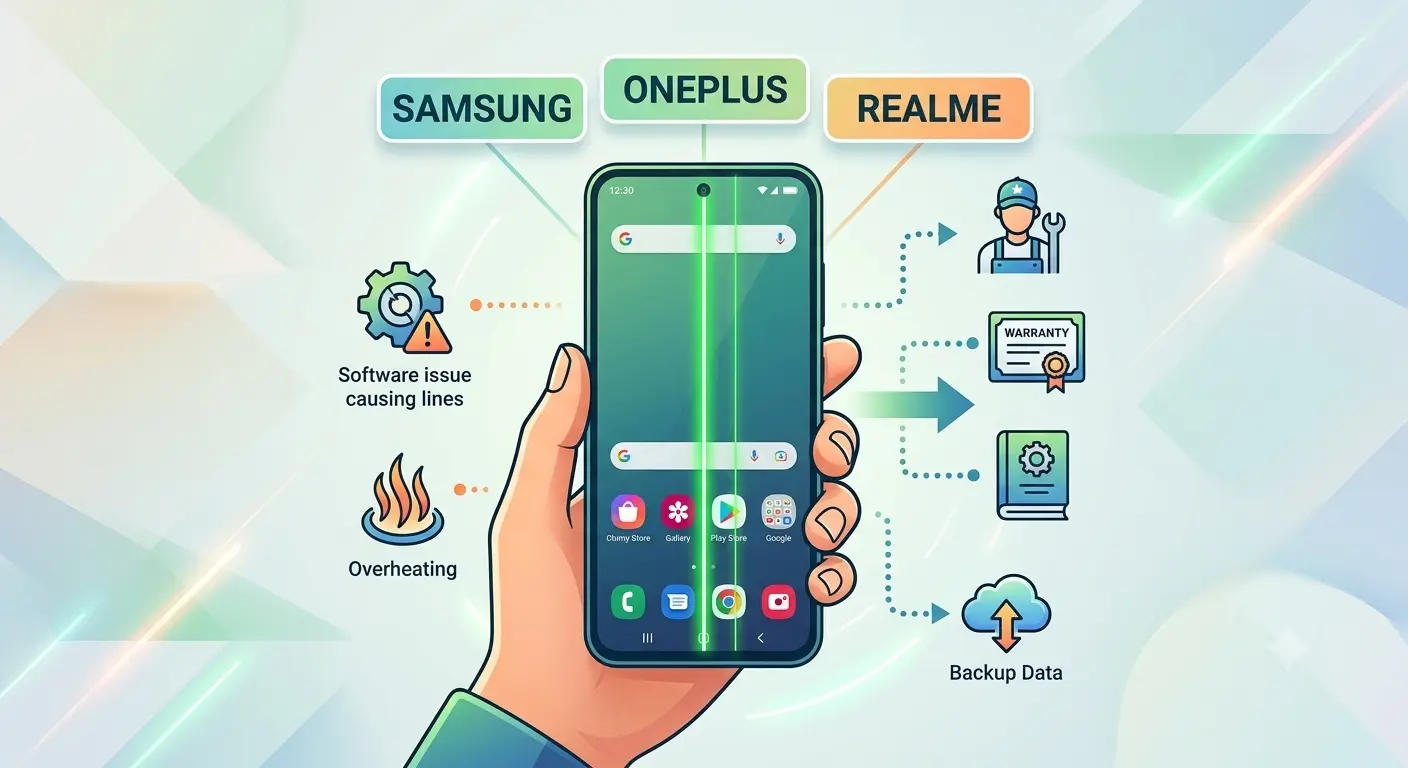
The green line issue is a display defect that shows up almost exclusively on phones with AMOLED or OLED screens which, at this point, is most Samsung, OnePlus, and Realme phones released in the last several years. It usually appears as a thin vertical or horizontal green stripe, though some people report it flickering in and out, or splitting into a second line over time.
It’s been reported widely enough across brands Samsung, OnePlus, Realme, Oppo, Vivo, Xiaomi, and even iPhones that it’s generally treated as a hardware-pattern issue tied to how AMOLED panels are built and connected, rather than something one manufacturer did wrong. It also shows up more often in hot, humid climates, and disproportionately on phones somewhere around one to two years old right around the point where a lot of warranties quietly expire. Convenient, in the most irritating way possible.
There are two broad causes, and figuring out which one you’re dealing with is really the whole game:
Software or firmware related. Sometimes a buggy update, a display driver glitch, or an app conflict causes a green line to appear that has nothing to do with physical damage. This kind tends to show up right after an update, might only appear at certain brightness levels, and can often be cleared without touching the hardware at all.
Hardware related. This is the more common culprit, especially if the line showed up out of nowhere with no update involved. It’s usually traced to a loose, worn, or damaged display connector the ribbon cable linking the screen to the motherboard or to actual pixel/panel damage from a drop, pressure, heat, or moisture exposure you may not even remember.
Quick Fixes to Try First (Software-Side)
Before you assume the worst, run through these. They cost nothing, take a few minutes, and rule out the easy explanation.
- Restart the phone. Obvious, I know. But a genuine share of green-line reports, especially the ones tied to updates, clear up after a simple reboot. It’s worth being the first thing you try, not the thing you do out of desperation after everything else fails.
- Check for a pending software update. Go to Settings > Software Update on Samsung and Realme, or Settings > About Device > System Updates on OnePlus (OxygenOS). If the line appeared right after an update, there’s a decent chance the manufacturer already knows and has pushed — or is about to push — a fix. I’ve seen this happen literally: a line shows up after an overnight update, sticks around for a week, and then a follow-up patch quietly removes it.
- Boot into Safe Mode. Hold the power button, then press and hold “Power Off” until the option to reboot into Safe Mode appears. Safe Mode disables third-party apps. If the green line disappears in Safe Mode, some app on your phone is the actual cause, not the screen itself — uninstall whatever you installed most recently and see if it comes back in normal mode.
- Switch your display mode and lower adaptive brightness. Go into Settings > Display and toggle from Vivid to Natural (or the equivalent on your phone), and turn off adaptive brightness for a day. Some driver-related green lines only appear below a certain brightness threshold or under specific color profiles — switching things up can tell you a lot about whether this is a calibration issue.
- Run the built-in hardware test (Samsung specifically). Open the phone dialer and type
*#0*#. This pulls up Samsung’s hidden diagnostic menu, where you can run a dedicated display test and see exactly what the panel is doing, line by line, pixel by pixel. It won’t fix anything, but it tells you a lot about whether you’re looking at a display fault versus something else.
If the line disappears at any point during these steps and stays gone, treat it as resolved for now — but keep an eye on it. Software-side green lines that keep coming back after clearing are often an early warning sign of a hardware issue underneath.
When It’s Actually Hardware
If none of the above worked, or the line came back within a day or two, you’re most likely looking at a connector or panel problem. A few signs that point firmly toward hardware rather than software:
- The line appeared with no recent update, no new app, nothing that changed
- It flickers when you tap or apply light pressure near the screen edge
- Other colors, patches, or dead zones show up alongside the green line
- It’s visible even when the screen is technically “off” but still receiving power (some users report this specifically)
None of this is something you fix yourself with a settings menu, and honestly, I wouldn’t recommend trying to open the phone up either — AMOLED connectors are genuinely delicate, and DIY attempts tend to turn a repairable green line into an unrepairable black screen. This is where it becomes a warranty and service center conversation.
Brand-by-Brand: What Samsung, OnePlus & Realme Are Actually Doing About It
This part matters more than most guides mention, because the manufacturers haven’t handled this issue identically.
Samsung has, on a case-by-case basis, offered free out-of-warranty screen replacements for certain Galaxy models known to be affected, including reports around the Galaxy S20 series. This isn’t a public blanket policy — it’s typically handled at the service center or support-call level, which means the outcome can depend a fair bit on how the conversation goes. Worth calling Samsung support directly, describing the issue clearly, and asking specifically whether your model has a known display advisory.
OnePlus has been the most upfront about this. In several markets, including India, OnePlus has offered a lifetime display warranty specifically covering the green line issue on affected models, regardless of whether the phone is still under standard warranty. If you have a OnePlus phone with this problem, contact OnePlus support first before assuming you’ll have to pay.
Realme, like most Oppo-family brands, handles it on more of a case-by-case service center assessment. There’s no public blanket program as clear-cut as OnePlus’s, but users have reported free or discounted repairs when the device is still reasonably recent and there’s no sign of physical damage like a crack or water exposure.
Across all three, the same advice applies: report it early. The longer a green line sits unaddressed, the harder it becomes to argue it’s a manufacturing defect rather than something that happened later on your end — and some of these support windows are genuinely time-limited.
Preventing It (As Much As You Can)
You can’t fully prevent a manufacturing-level connector issue, but you can reduce your odds and slow down wear on the display connector:
- Use a proper case and screen protector — pressure and drops are the most common trigger for a loosened connector
- Avoid letting the phone overheat during long gaming sessions or leaving it in direct sun on a car dashboard
- Keep it away from humid environments and don’t use it right after it’s been wet, even if it seems fine
- Stick to the original or a certified charger — voltage inconsistencies have been anecdotally linked to display faults over time
None of this guarantees anything. AMOLED panels are just inherently more prone to this than the older LCD screens were, and that’s the trade-off you’re making for better contrast and battery life.
If you’re staring at a green line right now: restart first, check for updates second, try Safe Mode third. If it clears up, great, keep an eye on it. If it doesn’t, stop troubleshooting and start a support ticket — especially if you’re on a OnePlus, where the fix might genuinely be free regardless of your warranty status. The worst thing you can do with a hardware-level green line is keep restarting the phone for two weeks hoping it’ll get bored and leave. It won’t.
You May Also Like:
Frequently Asked Questions
Is a green line on my phone screen a software or hardware problem?
It can be either, but hardware causes are more common. If the line appeared right after a software update and clears in Safe Mode or after an update, it’s likely software. If it appeared with no clear trigger and doesn’t go away after restarting or updating, it’s typically a hardware issue tied to the display connector or panel.
Can a green line on an AMOLED screen fix itself?
Sometimes, if it’s caused by a temporary software or driver glitch — a restart or a follow-up update can resolve it. If it’s caused by a loose or damaged display connector, it will not fix itself and tends to get worse over time.
Does Samsung replace screens for free if you have the green line issue?
Samsung has offered free out-of-warranty replacements for some affected Galaxy models on a case-by-case basis through support and service centers, though there’s no universal public policy. Contact Samsung support directly and reference the known display issue.
Does OnePlus offer a free repair for the green line issue?
In markets including India, OnePlus has offered a lifetime display warranty specifically covering the green line issue on eligible models, independent of standard warranty status.
Is it safe to keep using a phone with a green line on the screen?
Yes, in most cases it’s safe to keep using the phone, but a hardware-related green line can worsen over time, sometimes spreading or leading to display failure. It’s worth getting it assessed rather than ignoring it indefinitely.